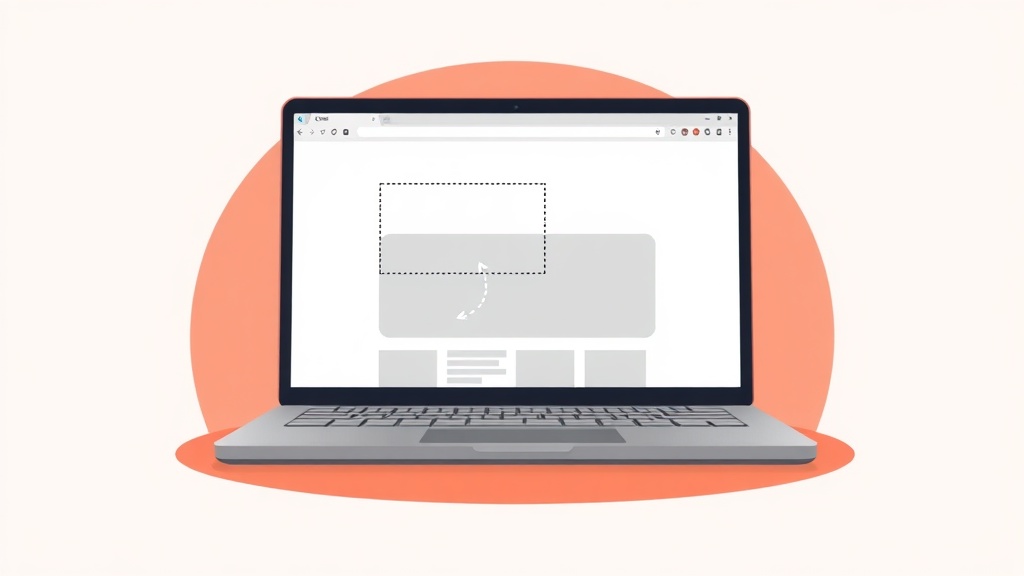
Taking a screenshot on a Chromebook is fast once you know the keys, but the built-in tools stop at whatever fits on your display. This guide walks through every native method for a screenshot on a Chromebook, shows you where the files land, and then covers the one thing ChromeOS still cannot do on its own: capture a long, full-page scrolling screenshot and mark it up.
How do you take a screenshot on a Chromebook?
To take a full-screen screenshot on a Chromebook, press Ctrl + Show windows (the key with a rectangle and two lines, usually in the top row). For a partial or region screenshot, press Shift + Ctrl + Show windows and drag to select an area. On a tablet or convertible with no keyboard attached, press the Power button + Volume down together. Every screenshot is saved to your Downloads folder and copied to your clipboard automatically.
Capture the full screen
This is the quickest way to grab everything you can see. Google's ChromeOS support documentation lists it as the default screenshot action.
- Get the screen looking exactly how you want it.
- Press Ctrl + Show windows. If your keyboard has a dedicated Screenshot key, you can press that instead.
- You will hear a shutter sound and see a preview thumbnail in the bottom-right corner.
The Show windows key sits in the top row and looks like a rectangle with two lines beside it. If you are on an external or Windows-style keyboard that lacks it, use Ctrl + F5 instead.
Capture part of the screen (region)
Use this when you only need a slice of the screen, such as a single paragraph, an error message, or one image.
- Press Shift + Ctrl + Show windows. Your cursor turns into a crosshair.
- Click and drag a box around the area you want.
- Release to capture. You can fine-tune the selection first with the arrow keys, or press Tab to grab a corner handle and resize.
On an external keyboard, the equivalent is Ctrl + Shift + F5.
Capture a single window
Window mode is handy when you have several apps open but only want one of them, with no cropping afterward.
- Press Shift + Ctrl + Show windows to open the Screen capture toolbar.
- In the toolbar, choose the Window icon (or press Tab to switch to Window mode).
- Click the window you want to capture. ChromeOS grabs just that window, edge to edge.
Screenshot in tablet mode (no keyboard)
If you flip your convertible into tablet mode or use a keyboard-free Chromebook tablet, the shortcut keys are out of reach. The physical-button combo takes over instead.
- Open the screen you want to capture.
- Press and hold the Power button and the Volume down button at the same time for about one second.
- The screen flashes and the shot saves automatically.
This button combo is the most reliable method across models because it does not depend on any keyboard layout.
Use the built-in Screen capture tool
If you would rather point and click than memorize shortcuts, ChromeOS has a visual tool built into Quick Settings that also handles screen recording.
- Click the time in the bottom-right corner of the shelf to open Quick Settings.
- Select Screen capture (the camera icon).
- A toolbar appears along the bottom. Toggle between screenshot and record modes, then choose full screen, window, or region, plus a settings gear to change the save folder.
Where Chromebook screenshots are saved
By default, ChromeOS drops every screenshot into your Downloads folder and copies it to the clipboard at the same time, so you can paste it straight into a doc or chat without hunting for a file.
Capture a full-page (scrolling) screenshot and annotate it
Here is the honest limitation: every native Chromebook method above captures only what is visible on screen. If a web page runs longer than your display (an article, a receipt, a long dashboard), the built-in tools cannot stitch the whole thing into one image, and they cannot add arrows, text, or highlights beyond a basic crop. Chrome's hidden DevTools trick (F12, then Ctrl + Shift + P, then type screenshot and choose Capture full size screenshot) can export a full page, but it is clunky and gives you no markup.
That gap is exactly where a lightweight browser extension helps. Our free InkShot extension captures the entire web page from top to bottom, including everything below the fold, in one click, then opens a built-in editor with arrows, text, shapes, and blur so you can mark up the result before you save or share it. Because a Chromebook runs Chrome, extensions like this install straight from the Chrome Web Store and work the same as on any desktop.
If long pages are your main need, our walkthrough on how to screenshot a scrolling web page covers the sticky-header and lazy-loading gotchas in detail, and our guide to how to annotate a screenshot shows which markup tools actually make a capture clearer.
Troubleshooting: no Overview key or external keyboard
Not every Chromebook or keyboard is laid out the same way, so a shortcut that works on one machine may seem missing on another.
- No Show windows key: some keyboards label it Overview, or replace it entirely. On an external keyboard, use F5 in place of Show windows (Ctrl + F5 for full screen, Ctrl + Shift + F5 for a region).
- Shortcut does nothing: open Quick Settings and use the Screen capture tool instead, which does not rely on the top-row keys.
- In tablet mode with a keyboard attached: fold the keyboard fully back or detach it so the Power + Volume down combo is recognized.
- Managed or school Chromebook: screenshots can be disabled by an administrator; check with your IT admin if nothing happens.
Frequently asked questions
Where do Chromebook screenshots go?
They save to the Downloads folder by default and are copied to your clipboard at the same time. Open the Files app and select Downloads to find them, or click Tote next to the clock on the shelf for the most recent ones. You can change the save folder from the Screen capture toolbar settings.
How do I screenshot a whole web page on a Chromebook?
The native Chromebook shortcuts only capture the visible screen, so they cannot grab a page longer than your display in one image. To capture an entire scrolling page, use a browser extension such as InkShot, which auto-scrolls the page, stitches it into a single full-page image, and lets you annotate it before saving.
How do I screenshot on a Chromebook without the Overview key?
If your keyboard has no Show windows or Overview key, press Ctrl + F5 for a full screen or Ctrl + Shift + F5 for a region. On a keyboard-free tablet, press Power + Volume down. You can also open the Screen capture tool from Quick Settings and click the mode you want.
Start with the native shortcuts for quick, everyday grabs; they are fast, free, and built right into ChromeOS. When you need to capture a long page end to end or add clear markup, add InkShot to your Chromebook and handle both in a single click, no editing detour required.