
Inkshot — Webpage Screenshot & Draw Tool
InkShot is a free screenshot Chrome extension that lets you capture full page screenshots, visible viewport, or selected areas — then annotate screenshots with 10 professional drawing tools. Add arrows, text, shapes, blur sensitive content, highlight important details, and share instantly. The ultimate webpage screenshot tool with built-in screenshot annotation and markup.
Capture Any Webpage, Any Way You Want
Three powerful screenshot capture modes to fit every need — from a quick visible area capture to a complete full page screenshot
Visible Area Capture
Instantly capture the visible area of any webpage with a single click. Uses Chrome's native API for pixel-perfect, high-quality screenshots — no scrolling, no stitching, just a clean capture of exactly what you see on screen.
Full Page Screenshot
Capture the entire webpage from top to bottom — including content below the fold. Inkshot automatically scrolls, captures each section, and stitches them seamlessly into one complete full page screenshot.
Select Area Capture
Select a specific region of the page with a crosshair tool and capture only what matters. Perfect for grabbing a single element, a paragraph, a chart, or any custom area without capturing the entire screen.
10 Professional Annotation Tools
A complete screenshot annotation toolkit built right into your browser — draw, highlight, blur, label, and crop with precision
Freehand Pen
Draw freely on your screenshot with smooth strokes. Underline text, circle important areas, or sketch quick notes directly on the captured image.
Arrow Tool
Point to specific elements with clean, directional arrows. Essential for annotating screenshots in bug reports, design feedback, and tutorials.
Rectangle
Draw bounding boxes to frame sections of your webpage screenshot. Emphasize UI elements, mark areas for review, or create clear visual callouts.
Circle / Ellipse
Encircle key areas with oval and circular shapes. A fast way to highlight buttons, errors, or data points when marking up screenshots for your team.
Text Annotation
Click anywhere to add text labels and notes. Multi-line support with draggable positioning — perfect for documentation and visual communication.
Highlight Tool
Apply semi-transparent color overlays to emphasize content. Highlight text, sections, or any area without obscuring the original content underneath.
Blur / Pixelation
Blur sensitive information — passwords, emails, personal data, or any content you want to hide before sharing. One-click pixelation, processed entirely locally.
Number Markers
Add auto-incrementing numbered circles for step-by-step guides. Perfect for tutorials, documentation, and instructional screenshot markup.
Move / Select
Select and reposition any annotation on the canvas. Click to select, drag to move — non-destructive editing means nothing is permanent until you export.
Crop Tool
Crop your screenshot to remove unwanted edges and focus on the relevant area. Select the region to keep and apply — the rest is trimmed away cleanly.
See Inkshot in Action
Take a closer look at the Inkshot screenshot annotation editor and its powerful capture tools
Watch InkShot in Action
See how InkShot captures, annotates, and shares webpage screenshots in seconds

How to Use Inkshot
Capture, annotate, and share in three simple steps — no sign-up, no learning curve
Capture Your Screenshot
Click the Inkshot icon in your browser toolbar and choose a capture mode: Visible Area, Full Page, or Select Area. You can also use keyboard shortcuts for instant capture — Ctrl+Shift+V for visible, Ctrl+Shift+F for full page, Ctrl+Shift+S for area selection.
Annotate with Drawing Tools
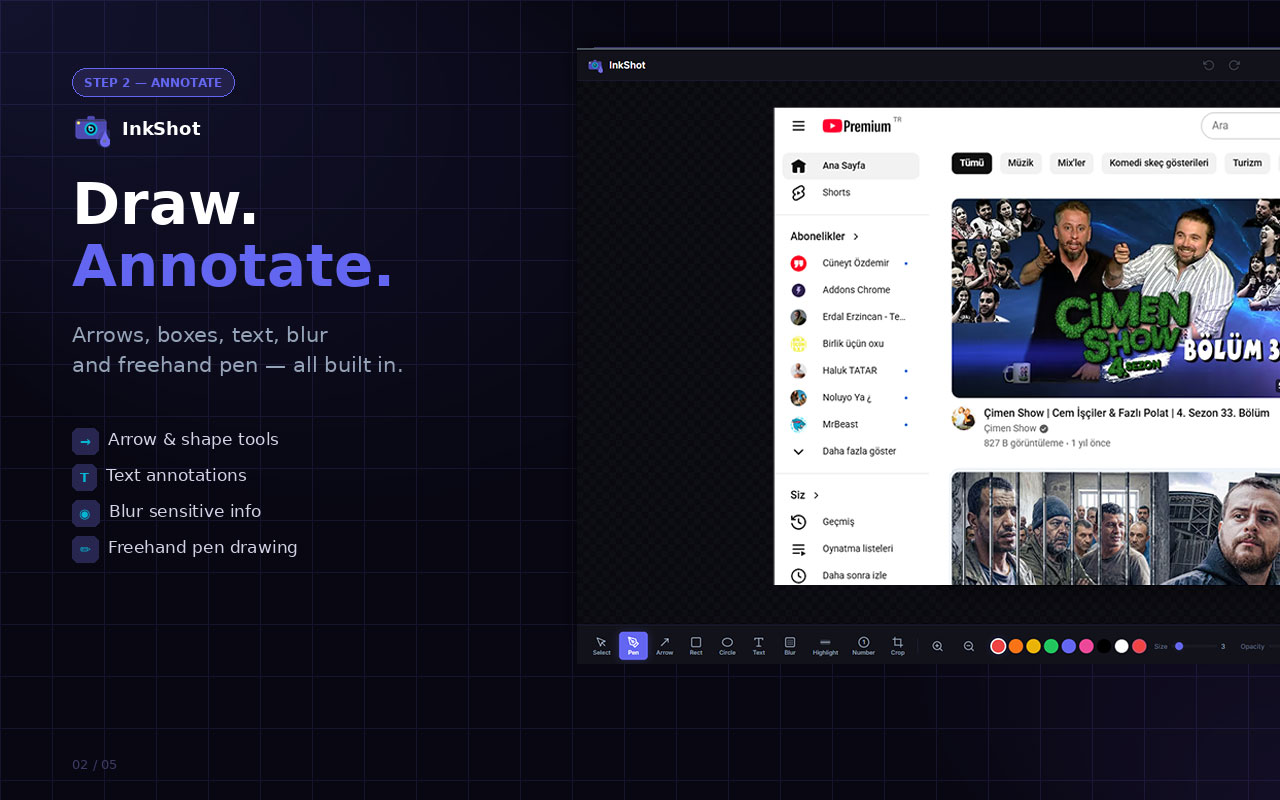
The captured screenshot opens in the Inkshot annotation editor. Use the pen, arrow, rectangle, circle, or text tools to draw on your screenshot. Customize colors, line thickness, and opacity to match your style. Use Ctrl+Z to undo any change.
Export or Share
When your annotated screenshot is ready, download it as PNG with a timestamped filename, copy to clipboard for instant pasting into chats and documents, or generate a shareable link. Your screenshot history is saved so you can revisit and re-edit anytime.
Why Inkshot Stands Out
More than just a screenshot tool — Inkshot is a complete capture-and-annotate workflow built for speed
Color & Style Customization
Choose from 8 preset colors or pick any custom color. Adjust line thickness from 1–20px and opacity from 20–100%. Every annotation tool respects your style settings.
Keyboard Shortcuts
Switch tools instantly with single-key shortcuts: P for pen, A for arrow, R for rectangle, C for circle, T for text. Full keyboard shortcut support for power users.
Blur Sensitive Content
Hide passwords, emails, and personal data with the built-in blur/pixelation tool. Drag over any area to pixelate it locally before sharing — essential for privacy-conscious teams.
Screenshot History
InkShot saves your last 50 captured screenshots automatically. View recent thumbnails in the popup, click to reopen in the editor, and continue annotating where you left off.
Zoom & Precision
Zoom in and out with mouse wheel or +/- keys. Get pixel-level precision when annotating small details — essential for bug reports and design feedback.
Undo & Redo
Made a mistake? Press Ctrl+Z to undo, Ctrl+Y to redo. Full history support means you can experiment freely without worrying about losing your work.
50+ Languages Supported
Inkshot is fully localized in over 50 languages including English, Spanish, French, German, Japanese, Korean, Chinese, Turkish, Arabic, and more. The interface adapts to your Chrome language setting.
Built for Everyone Who Works Visually
Whether you're reporting bugs, giving design feedback, or creating tutorials — Inkshot makes visual communication effortless
Bug Reports
Capture the issue, draw an arrow pointing to the bug, add a text note, and share the annotated screenshot with your development team. Clearer than words, faster than video.
Design Feedback
Take a screenshot of a webpage, circle the elements that need changes, add notes about color, spacing, or layout, and send it to your designer. Visual feedback, delivered instantly.
Tutorials & Documentation
Create step-by-step visual guides by capturing screenshots, adding numbered arrows, text labels, and highlights. Export as PNG for use in docs, wikis, or presentations.
Team Collaboration
Share annotated screenshots via link with colleagues. No file attachments, no app switching — just capture, annotate, share. Everyone sees exactly what you mean.
Your Screenshots Stay Private
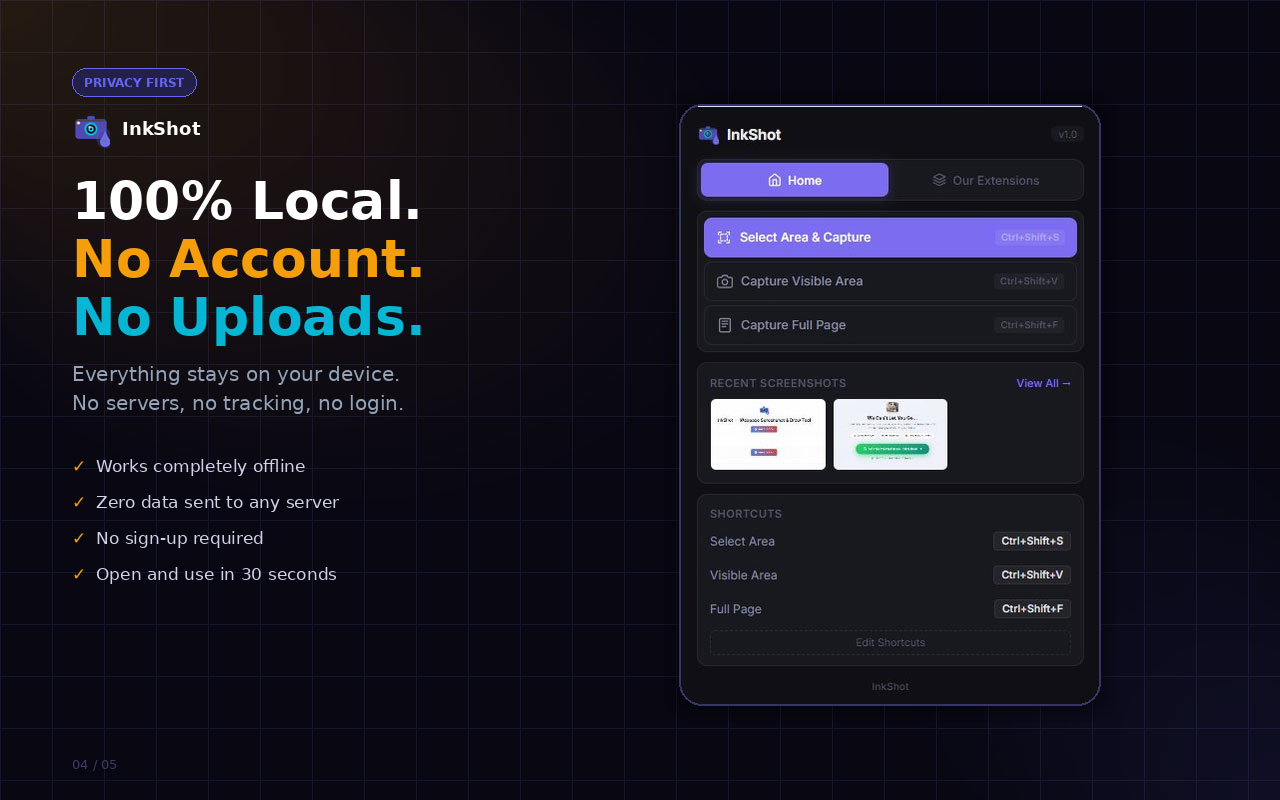
Inkshot processes everything locally in your browser. Your screenshots are never uploaded to any server unless you explicitly choose to generate a shareable link. No accounts, no tracking, no data collection. The extension only requests the permissions it needs to capture and annotate — nothing more. Your browsing activity and captured images remain completely under your control.
Start Capturing & Annotating in Seconds
Install Inkshot and get a complete screenshot and annotation tool right in your browser. Free, fast, and ready to use — no sign-up required.
Add Inkshot to Chrome — FreeNo account needed • 100% Free • Works on all websites • Instant install
Everything You Need to Know About Inkshot
Inkshot is a free, lightweight Chrome extension designed for capturing webpage screenshots and annotating them with professional-grade drawing tools. Whether you need to take a quick visible area screenshot, a complete full page screenshot, or a precisely selected region, Inkshot handles it all from a simple, intuitive interface.
Screenshot Capture Modes
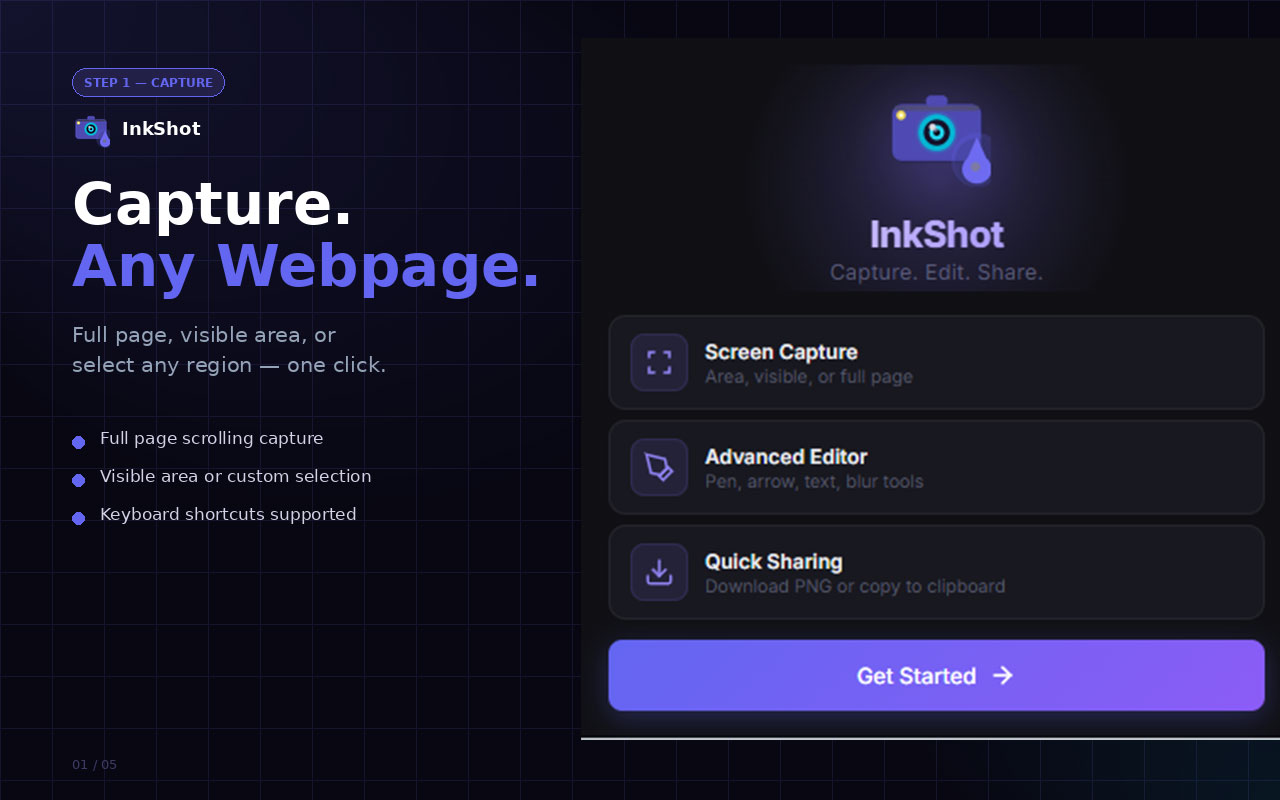
Inkshot offers three distinct screenshot capture modes. The Visible Area Capture uses Chrome's native API to take a pixel-perfect screenshot of whatever is currently on screen. The Full Page Capture automatically scrolls the entire page and stitches multiple screenshots into one seamless image — ideal for capturing long articles, dashboards, or entire landing pages. The Area Selection Capture lets you draw a custom rectangle to capture only the portion of the page you need.
Drawing and Annotation Tools
Once captured, your screenshot opens in the InkShot annotation editor — a canvas-based drawing environment with 10 professional tools. The freehand pen lets you sketch, underline, or circle freely. The arrow tool draws clean directional indicators for pointing out specific UI elements. Rectangles and circles create shape-based highlights for framing content. The text tool adds labels and notes anywhere on the image. The highlight tool applies semi-transparent overlays to emphasize content without hiding it. The blur/pixelation tool lets you hide passwords, emails, and sensitive information before sharing. Number markers add auto-incrementing circles for step-by-step guides. The move/select tool lets you reposition any annotation, and the crop tool trims the screenshot to the exact area you want to keep.
Blur, Highlight, and Number Markers
Beyond basic drawing tools, InkShot includes specialized features for professional workflows. The blur/pixelation tool lets you hide sensitive information — passwords, email addresses, personal data, or financial details — before sharing any screenshot. The highlight tool applies semi-transparent color overlays to draw attention to specific text or sections without obscuring the original content. And number markers automatically increment as you place them, making it easy to create step-by-step guides, numbered instructions, or sequential walkthroughs.
Customization Options
Inkshot gives you full control over the look of your annotations. Choose from 8 preset colors or select any color using the built-in color picker. Adjust line thickness from 1 to 20 pixels and set opacity from 20% to 100% for transparent overlays. Every tool respects your current style settings, so you can maintain a consistent look across annotations.
Keyboard Shortcuts for Power Users
Inkshot is built for speed. Switch between tools instantly with single-key shortcuts: P for pen, A for arrow, R for rectangle, C for circle, T for text. Use Ctrl+Z / Ctrl+Y for undo and redo, Ctrl+S to save as PNG, Ctrl+C to copy to clipboard, and +/- keys to zoom in and out. Global capture shortcuts let you start a screenshot from any tab without opening the popup first.
Export and Sharing
When you're done annotating, Inkshot offers multiple export options. Download the annotated image as a PNG file with a timestamped filename for easy organization. Use the clipboard copy feature to paste your screenshot directly into Slack, email, or any application that supports image pasting. Or generate a shareable link that anyone can open in their browser.
Screenshot History
InkShot automatically saves your last 50 screenshots to Chrome's local storage. Recent captures appear as thumbnails in the extension popup, so you can quickly revisit and re-annotate previous screenshots without taking them again. History is stored locally — nothing is uploaded to any server.
Who Is Inkshot For?
- Developers creating visual bug reports and documenting UI issues with annotated screenshots
- Designers capturing web designs and marking up feedback with arrows and notes
- Product managers documenting feature requirements with visual references
- Content creators capturing web content for articles, tutorials, and social media
- Students and researchers saving and annotating web-based references and resources
- QA testers capturing and annotating test results for clear, visual defect tracking
- Support teams sharing annotated screenshots to guide users through solutions — with sensitive data blurred automatically
Multi-Language Support
Inkshot is fully localized in over 50 languages, including English, Spanish, French, German, Portuguese, Italian, Japanese, Korean, Chinese (Simplified and Traditional), Arabic, Hindi, Turkish, Russian, and many more. The extension interface automatically adapts to your Chrome browser's language setting.
Ready to capture, annotate, and share? Install Inkshot from the Chrome Web Store and get a complete webpage screenshot and drawing tool in your browser — free, fast, and private.
Explore Our Other Chrome Extensions
Discover more powerful tools to enhance your browsing experience

Instagram Unfollow AI - Manage Unfollowers Effortlessly
Instagram Unfollow AI detects those who don't follow you back and helps you unfollow them to optimize your account easily.

X Unfollow AI – Manage Your Twitter Following List
Manage your X (Twitter) following, detect users who don't follow you back, and unfollow safely with smart filters.

TikTok Unfollow AI - Mass & Auto Unfollow All, Everyone & Non-Followers
See who doesn't follow you back on TikTok, then bulk unfollow all, everyone or only non-followers. Safe pacing, one click.

WASendly – WhatsApp Bulk Message Sender
Send bulk and automated WhatsApp messages safely and easily with WASendly.

WASendly – WhatsApp Contacts Extractor
Easily export WhatsApp contacts and group members to Excel, CSV, or vCard.

ExportPal - Save & Export ChatGPT, Claude, Gemini to PDF & Word
Save & export ChatGPT, Claude, Gemini, Grok, DeepSeek & Perplexity to PDF, Word, Markdown, HTML, JSON or Image. Private & free.

Followgap - Instagram Unfollowers Tracker & Unfollow Non-Followers
Find who doesn't follow you back on Instagram. Track unfollowers & mass unfollow non-followers in one click.

FollowStack – Instagram Toolkit for Desktop
Instagram toolkit for desktop. Track unfollowers, upload stories from PC, download media, and manage Instagram.

Roostbox - Twitter/X Exporter: Tweets, Followers, Bookmarks & Archive
Export tweets, replies, likes, bookmarks and followers from any Twitter/X account to Excel, CSV or JSON. No API key needed.

TokExport - TikTok Follower List, Following & Comment Export Tool
Export TikTok follower and following lists, video comments and post stats to CSV or Excel. Resume long exports.

ChatGPT Speed Booster
ChatGPT Speed Booster is a free Chrome extension that fixes slow ChatGPT performance in long conversations.

Instagram Follower Export Tool
Export Instagram followers, following, likes, and comments to CSV or Excel in one click

PromptJolt – AI Prompt Enhancer for ChatGPT, Claude & Gemini
Rewrite any AI prompt into a clear, structured version in one click. Press Ctrl+M on ChatGPT, Claude or Gemini. 50+ languages, free.

IGFollow AI - Auto Follow
IGFollow AI is an AI-powered tool to grow your Instagram. Boost engagement and expand your audience effortlessly

Backly — Unfollower Tracker for Instagram
See exactly who doesn’t follow you back on Instagram, protect the accounts you care about, and unfollow the rest at a safe, adjustable pace.

FeedRank – Instagram & TikTok Feed Sorter
Sort Instagram & TikTok feeds by likes, views, comments or date. See post stats at a glance and find viral content fast. Free.

Instagram Auto Follow
AI-powered Instagram auto follow tool to boost engagement, grow followers, and expand your audience effortlessly.

Claude Speed Booster
Fix slow Claude.ai in long conversations. Speed Booster hides older messages to stop lag, freezing & high memory use — instantly.

ChatPilot – ChatGPT Bulk Delete, Archive & Timestamps
Bulk delete & archive ChatGPT chats, add message timestamps and navigate conversations fast. Clean up ChatGPT in one click.

Extract AI – Email Extractor
Email Extractor helps you find visible email addresses on websites and works locally with no tracking or data collection.

Prompt Trove — Visual AI Image Prompts Gallery
A visual gallery of AI image prompts. Use them instantly in ChatGPT, Gemini, Sora, and Nano Banana.

Crawlhive — SEO Audit, Site Crawler & Technical SEO
Audit any page, then crawl the whole site: indexability, duplicate titles, orphan pages, click depth and Core Web Vitals. Your pages are never uploaded.

Privacy Guard for WhatsApp Web
Secure your WhatsApp Web with smart lock, panic button, and blur mode. Your privacy, your control.

Clickaroo - Mouse Effect Designer
Transform your cursor with stunning click effects & animations. Perfect for streamers, presenters & content creators.

Detechtor AI - Website Technology Checker & Tech Stack Detector
Detechtor AI checks what any website is built with — CMS & WordPress theme detector, frameworks, analytics, CDN, tech stack.

Numsift — Bulk WhatsApp Number Checker & Validator | Export to Excel
Bulk check which numbers are on WhatsApp. Validate lists, filter by country, spot business accounts, export to Excel or CSV.

Clearbox — Bulk Chat & Message Deleter for Instagram
Delete all your chats and messages on Instagram in bulk. One click, and the chats you protect stay untouched.

Rosterbox - IG Follower & Following Export List to CSV, Excel
Export IG follower and following lists, likes and comments to CSV, Excel or JSON in one click. Fast, private, no password.

Araç Data Merkezi — Used Car Valuation & Damage Check for Sahibinden
See what a car on Sahibinden is really worth: market value for the exact trim, how damage and repaint move the price, and the engine's known faults. Turkish interface, Turkey market.

Compare Similar - Price Research
Find similar products and compare prices across multiple stores. Make smarter shopping decisions with real-time price research.

SignedRise - Professional Email Signature
Create custom and professional email signatures effortlessly with SignedRise. Perfect for personal and work emails.