Claude is brilliant at long-form writing, careful reasoning, and clean code — which is exactly why you often want to keep what it gives you. Maybe it drafted a document you need to edit in Word, or a technical answer you want to file away. The problem: Claude.ai does not have an export button, and copy-pasting a long conversation into Word usually turns neat tables and code into a jumbled mess. Here is how to export a Claude chat to Word properly — keeping the formatting — plus when PDF or Markdown is the smarter choice.
Why Export Claude Conversations in the First Place?
Claude conversations tend to be substantive. People export them because the output is genuinely worth reusing:
- Editing in Word — take a Claude draft and revise, comment, and format it in a real editor.
- Handing off to a team — share a polished document instead of a link to a chat nobody else can open.
- Keeping a record — archive an important answer before a conversation gets long, trimmed, or lost.
- Building a knowledge base — drop Markdown straight into Obsidian, Notion, or your docs.
The format you pick matters, because each one is good at a different job. We will get to that — but first, the methods.
The Manual Ways (And Where They Fall Short)
You have two no-install options, and both have the same weakness. The first is copy-paste: select the conversation, paste it into Word, and clean it up. The second is print-to-PDF via Ctrl+P → Save as PDF, which gives you a PDF but not an editable Word file, and often breaks across page boundaries.
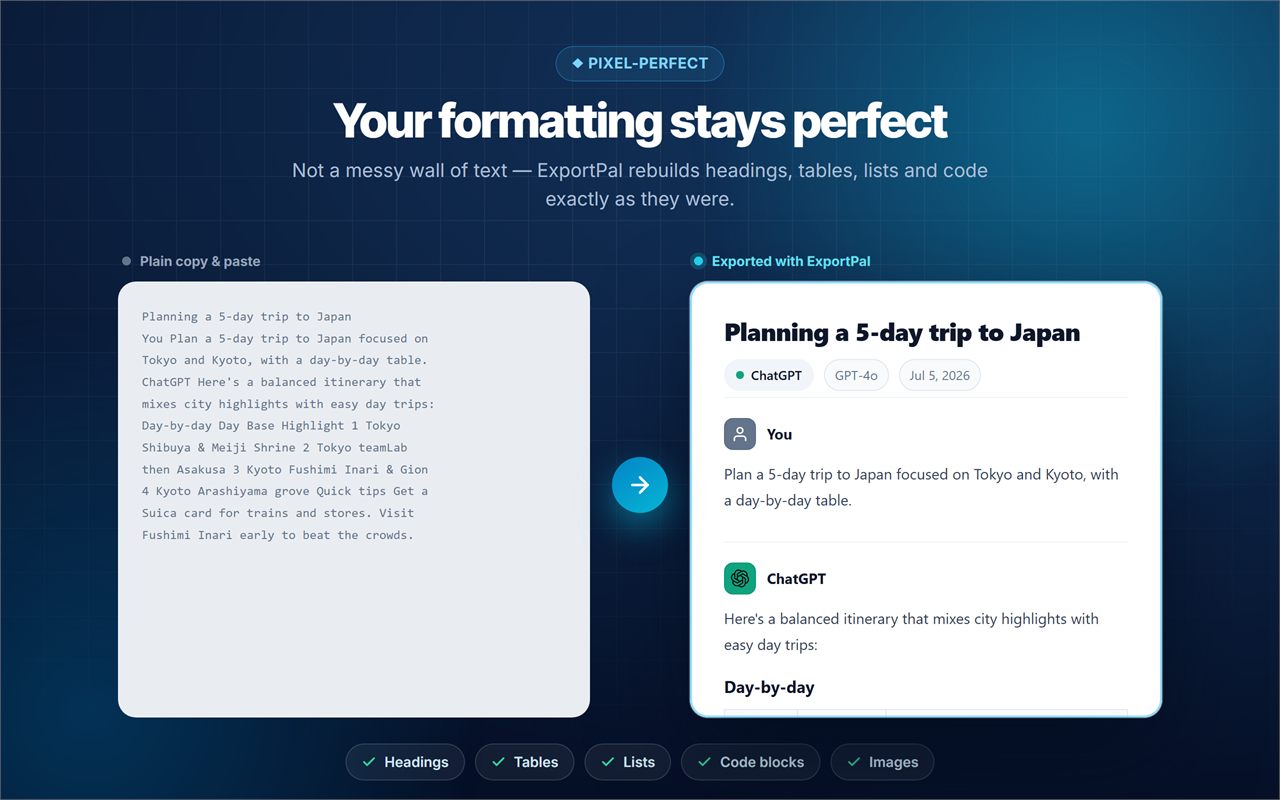
The recurring issue is structure. When you paste a Claude answer into Word, tables frequently collapse into a single line, code blocks lose their monospaced font and indentation, and headings turn into plain text. For a two-line answer, no big deal. For a detailed response with tables and code, you can spend more time reformatting than Claude spent writing. There is a faster way.
Export a Claude Chat to Word in One Click
The reliable method is a browser extension that reads the conversation and rebuilds it as a real document. ExportPal adds an export button to Claude.ai and converts any conversation into Word (.doc), PDF, Markdown, HTML, TXT, or JSON — with headings, tables, lists, code blocks, and images kept intact. No copy-paste, no manual cleanup.
-
1
Open the Claude conversation
Head to the chat on Claude.ai you want to save. The extension reads the whole thread automatically.
-
2
Click ExportPal and choose Word
Preview what you will get and choose what to include — your prompts, Claude's replies, titles, timestamps.
-
3
Open it in Word and edit
You get an editable .doc with the formatting rebuilt — ready to revise, comment on, or reuse.

ExportPal — Export Claude Chats to Word, PDF & More
One click turns any Claude conversation into an editable Word doc, a clean PDF, or Markdown — with tables, code, and images preserved. Runs entirely in your browser, nothing uploaded. Also works with ChatGPT, Gemini, and 10 more AI tools.
Try It Free →Which Format Should You Choose?
Exporting is only half the decision — the format is the other half. Here is how I pick:
Writing a document you will keep editing? Export to Word. Sending a final version to someone else? Export to PDF. You can export the same Claude chat to both in seconds.
The Same Trick Works on Every AI Tool
Claude is not the only place worth saving. The best exporters detect the platform automatically, so the exact same one-click flow works on ChatGPT, Google Gemini, DeepSeek, Grok, Perplexity, Copilot, and more.

That means one habit and one tool covers all of your AI conversations. If you also live in ChatGPT, our companion guide on saving a ChatGPT conversation as a PDF walks through the same idea for that platform. And if you want the answers you are exporting to be sharper to begin with, learning to write better AI prompts makes everything downstream easier.
Frequently Asked Questions
Can I export a Claude conversation to Word?
Yes. Claude has no native export, but a browser extension like ExportPal converts any Claude chat to an editable Word (.doc) file in one click, with formatting preserved.
Why does my pasted Claude chat look broken in Word?
Copy-paste flattens structure — tables collapse and code loses its formatting. Exporting directly with a tool that rebuilds the document avoids this entirely.
Can I export Claude to PDF or Markdown instead of Word?
Yes. ExportPal exports Claude conversations to Word, PDF, Markdown, HTML, TXT, and JSON — pick whichever fits what you are doing with the file.
Does exporting my Claude chat send it to a server?
With ExportPal, no. All parsing and file generation happen locally in your browser, so your conversation is never uploaded and there is no chat tracking.
Does the same tool work on ChatGPT and Gemini?
Yes. ExportPal works across 13 AI platforms, including ChatGPT, Gemini, DeepSeek, Grok, and Perplexity — the same one-click export on all of them.
Claude gives you work worth keeping. Export it to Word when you want to edit, to PDF when you want to share, and to Markdown when it belongs in your notes — and skip the copy-paste cleanup entirely.