You asked ChatGPT for something good — a project plan, a block of working code, a study guide — and now you want to keep it. Not buried in an endless sidebar you will never scroll back to, but as a real file you can open, print, and share. The bad news: ChatGPT has no "Save as PDF" button. The good news: there are three reliable ways to save a ChatGPT conversation as a PDF, and one of them takes a single click. This guide walks through all three, with the trade-offs I have run into using each.
Why Save a ChatGPT Chat as a PDF at All?
A PDF is the closest thing the internet has to a universal document. It looks the same on every device, it prints cleanly, and it does not depend on you staying logged into a chat that could be reorganized or lost. People save ChatGPT conversations to PDF for a handful of very practical reasons:
- Archiving — keep a permanent copy of an important answer before a thread gets deleted or auto-trimmed.
- Sharing — send a clean document to a colleague or classmate instead of a screenshot or a wall of pasted text.
- Offline reading — study or review on a plane, on paper, or on a device that is not signed in.
- Citing and referencing — attach the exact wording of an answer to a report, brief, or assignment.
The catch is that not every method preserves the parts that make a ChatGPT answer useful — the tables, the code blocks, the numbered steps. Let us go through them.
Method 1: Print to PDF (Built Into Your Browser)
Every modern browser can "print" a page to a PDF, and ChatGPT is just a web page. This is the zero-install option.
-
1
Open the conversation
Go to the ChatGPT chat you want to keep and scroll to the top so the whole thread has loaded.
-
2
Press Ctrl+P (or Cmd+P on Mac)
This opens the print dialog. Under Destination, choose Save as PDF.
-
3
Save the file
Pick a location, click save, and you have a PDF of the page as your browser sees it.
It works, but manage your expectations. Print-to-PDF captures the page layout, which means you often get the sidebar, the input box, and awkward page breaks that slice a code block in half. Long conversations can spill weirdly across pages, and anything hidden behind a "show more" toggle may not print at all.
Method 2: Copy and Paste Into a Document
The manual route: select the conversation, copy it, paste it into Google Docs or Word, then export that document to PDF. You get full control over formatting — and you pay for it with your time.
The problem is that copy-paste flattens structure. Tables often collapse into a run-on line, code loses its monospaced formatting and indentation, and images do not come across at all. For a short answer it is fine. For a long, richly formatted conversation, you can spend fifteen minutes rebuilding tables by hand before the document is even readable. If you only ever save one chat, this is tolerable. If you do it weekly, it gets old fast.
Method 3: One-Click Export With a Browser Extension
The cleanest option is a dedicated exporter that reads the conversation directly and rebuilds it as a proper document — no page furniture, no broken tables, no manual cleanup. This is exactly what ExportPal is built for. It adds a one-click export button to ChatGPT and turns any conversation into a PDF (or Word, Markdown, HTML, TXT, or JSON) with your headings, tables, lists, code blocks, and images preserved.
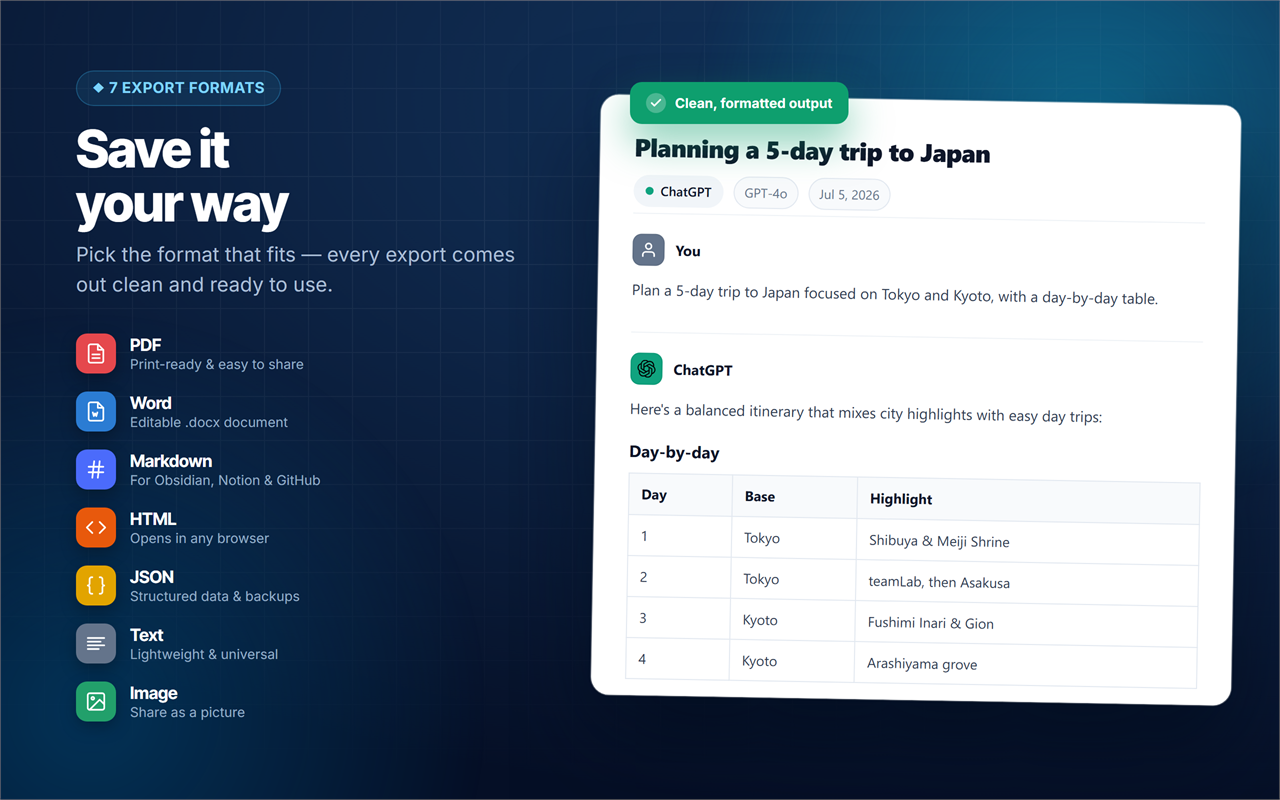
The workflow is about as short as it gets:
-
1
Open your ChatGPT conversation
No need to scroll or expand anything — the extension reads the full thread for you.
-
2
Click ExportPal and choose PDF
You can preview first and pick whether to include titles, timestamps, your messages, or just the answers.
-
3
Save — done
You get a clean, print-ready PDF with real selectable text. The whole thing happens in your browser.
Need just one answer, not the whole thread? A good exporter lets you export a single message. Great for pulling one block of code or one summary out of a long conversation without the surrounding chatter.

ExportPal — Save & Export Any AI Chat to PDF
Turn any ChatGPT, Claude, or Gemini conversation into a clean PDF, Word, Markdown, HTML, TXT, or JSON file in one click — tables, code, and images kept perfectly. 100% in your browser, nothing uploaded. Works on 13 AI platforms.
Try It Free →What a Good PDF Export Should Preserve
However you save your chat, a quality PDF should keep the things that made the answer worth saving. When you compare methods, check whether each one holds onto:
Which Method Should You Use?
If you need to save a single chat once and do not mind a rough layout, browser print-to-PDF is fine. If you want total formatting control for one important document and have time to spare, copy-paste into Google Docs works. But if you save ChatGPT conversations regularly — or you care about keeping tables and code clean — a one-click exporter saves you real time and produces the best-looking file. The same approach works when you want to export a Claude chat to Word or save a Gemini answer, since the good exporters cover every major AI tool.
And once you are keeping your best AI answers as clean documents, it is worth getting more out of the model in the first place — our guide on studying faster with an AI workflow pairs nicely with a solid export habit.
Frequently Asked Questions
Does ChatGPT have a built-in "Save as PDF" button?
No. ChatGPT has no native PDF export. You either use your browser's print-to-PDF, copy the text into a document, or add a browser extension that exports the conversation directly.
Will my code blocks and tables survive the export?
With print-to-PDF and copy-paste, often not cleanly — code gets split and tables collapse. A dedicated exporter like ExportPal rebuilds them so they stay formatted and unbroken.
Is it safe to use a Chrome extension to export my chats?
It depends on the extension. Prefer one that processes everything locally in your browser and never uploads your conversation to a server. ExportPal runs on-device with no chat tracking.
Can I save just one message instead of the whole conversation?
Yes, if you use an exporter that supports per-message export. You choose in the preview whether to save the full thread or a single message.
Is saving a ChatGPT chat to PDF free?
Browser print-to-PDF and copy-paste are free. ExportPal is also free to install and use for one-click PDF, Word, and Markdown exports.
Your best AI conversations are worth keeping. Whichever method fits your workflow, saving them as clean PDFs means they are still there — searchable, shareable, and readable — long after the chat scrolls out of view.