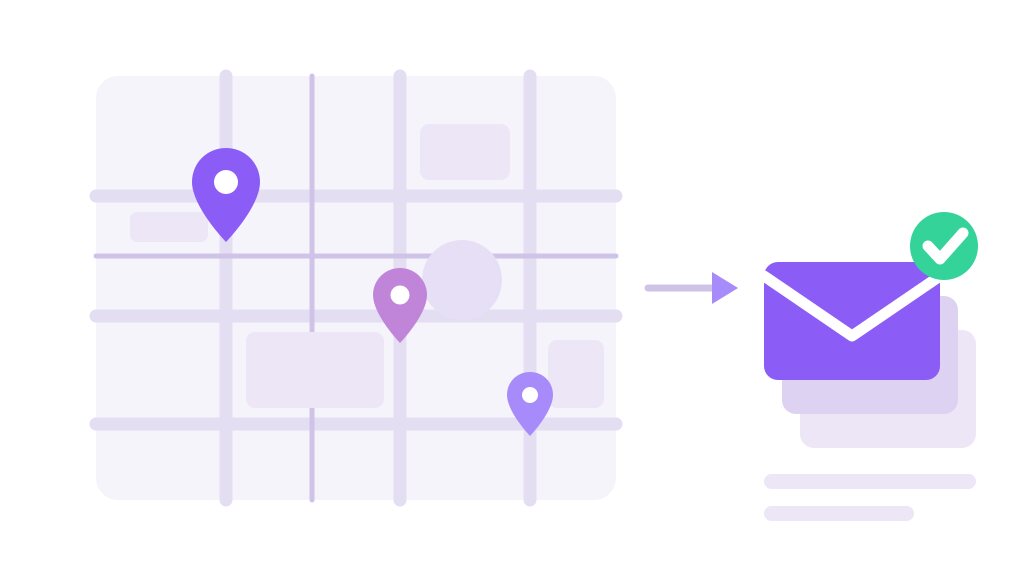
You open Google Maps, search "dentist in Austin", and 120 businesses appear. Names, phone numbers, opening hours, websites — everything except the one thing you actually need. If you have ever tried to extract emails from Google Maps and come away with a spreadsheet full of phone numbers and blanks, you already know the problem: Maps is not an email database, and no amount of scrolling changes that.
The good news is that the emails do exist. They are just one click away from the listing, sitting on the business website where the owner put them on purpose. This guide walks through the four ways people try to collect them, which one survives contact with reality, and the hit rate you should actually expect.
Why Google Maps almost never shows an email address
A Google Business Profile has fields for phone, address, website, hours and photos. It has no public email field. Google deliberately pushes contact through the "Message" button and the phone number instead, because an exposed email on 200 million listings would be a spam magnet.
So the useful question is not how to extract emails from Google Maps, but where those emails actually live. When a tool claims to pull them straight out of Maps, one of two things is happening. Either it is reading the website linked on the listing — which is the honest version — or it is guessing addresses from a pattern like info@domain.com and hoping. The second kind is why cold outreach lists bounce at 40%.
The four ways people try to extract emails from Google Maps
Method 1 — Copying from each listing by hand
Open the listing, click the website, hunt for the contact page, copy the address, paste it into a sheet, go back. It works, it is completely within the rules, and it is unbeatable for a list of ten.
At a hundred it becomes a different job. Most people average 40–60 seconds per business once you include the dead ends — the sites with a contact form and no address, the ones where the email is buried in a footer image. A list of 200 is a full working day, and the error rate climbs as attention drops. Hand-copying is not wrong; it just does not scale past an afternoon.
Method 2 — Monthly panels that promise a finished list
These are the services where you paste a search term, pay a subscription, and download a CSV an hour later. Almost anything marketed as a Google Maps email extractor sits in this bucket, as does most of what is sold as a Google Maps scraper Chrome extension. Sometimes the data is decent. The problems are structural rather than technical.
You cannot see where any address came from, so you cannot judge it — a verified contact page and a guessed info@ look identical in the export. The list is built on their servers, which means the business data and your target market both pass through a third party. And you are renting: stop paying and the tool and the history go with it. For teams that need an audit trail of where a contact was collected, an opaque CSV is a liability.
Method 3 — Building your own script on the Places API
Google's Places API is the legitimate way to pull business data at volume, and if you can write a bit of Python it is genuinely powerful. It returns names, coordinates, ratings and the website URL.
What it does not return is an email, because the field does not exist. So the API gets you the same list of websites you would have had anyway, and you still need a second stage that fetches each site and reads the contact details. Add billing above the free tier, rate limits, and the maintenance that comes with any scraper, and the honest summary is: correct choice if you are building a product, heavy machinery if you just want to email 150 plumbers.
Method 4 — Letting your browser read the sites you already open
The fourth route inverts the problem. Instead of asking a server to go find emails, you open the business websites in your own browser — logged in as nobody, exactly like any visitor — and let an extension read the addresses that are already visible on the page as you go.
Nothing is guessed and nothing is sent anywhere: the page is already loaded in your tab, the extension reads the visible text, and the results collect in a list you can filter and export. This is the approach behind Extract AI — it scans the current page, strips duplicates, lets you filter by domain, and exports to CSV, Excel, JSON or TXT. Because it only reads what is publicly rendered, you always know exactly where a given address came from.
The workflow that actually works, step by step
This is how to find emails from Google Maps without guessing a single address, and it holds up whether your list is 50 businesses or 500. It assumes you are using Maps for what it is good at — finding the right businesses — and the web for what it is good at — holding contact details.
1. Narrow the search before you collect anything. "Dentist" in a whole metro area gives you 300 listings, half of which are not your market. "Pediatric dentist" plus a single district gives you 40 that are. A smaller, sharper list beats a big one every time, because the follow-up work is per contact.
2. Switch Maps to the list view and scroll to the end. Maps loads results in batches as you scroll. If you start collecting before the list stops growing, you silently miss the back half.
3. Open the websites in batches, not all at once. Middle-click or ctrl-click the website link on 10–15 listings so they queue up as background tabs. Twenty tabs at a time is the sweet spot; a hundred will stall your browser and some sites will time out, which looks like "no email found".
4. Let the extractor read each tab, and visit the contact page. Homepages often show nothing. The address usually lives on /contact, /about, or the footer of an interior page. With automation mode on, moving through those pages is enough — each visible address lands in the list as you arrive.
5. Filter by domain before exporting. This is the step everyone skips. Filtering by the business domain removes the analytics, hosting and theme-developer addresses that sit in site footers, which is where most of the junk in a cold list comes from.
6. Export, then look at the sheet before you use it. Dedupe, delete anything with a role prefix you do not want, and keep the source column. If a contact is ever questioned, you want to be able to point at the page it came from.
What a realistic hit rate looks like
Expectations are where most of the disappointment with this task comes from, so here are honest numbers. Across a typical local-business list — trades, clinics, restaurants, small agencies — you can plan on roughly this:
That ratio is not a failure of the method — it is the actual shape of small-business web presence. Knowing it up front means you size the Maps search for the number of contacts you need, rather than wondering why 200 listings produced 90 emails.
The rules that keep this clean
Collecting a publicly published business address is normal commercial research in most jurisdictions. What you do next is the regulated part, and the distinction matters more than people assume.
Three things worth getting right before you send anything:
A published address is not consent. Under GDPR a business email tied to a named person is still personal data. You can usually rely on legitimate interest for genuinely relevant B2B outreach, but you need to be able to explain the relevance, and you must honour objections immediately.
Every message needs an identity and an exit. CAN-SPAM in the US and CASL in Canada both require you to say who you are and give a working unsubscribe. CASL goes further and expects consent or a documented existing relationship, so a cold list needs real care there.
Never take what the page hid. Addresses behind a login, inside page source but not rendered, or obfuscated on purpose are off limits. "Publicly visible to any visitor" is the line, and it is the reason a local, read-what-is-on-screen tool is the defensible choice.
If you want the longer version of this with the compliance detail spelled out, we covered it separately in how to extract emails from websites legally and safely.
Frequently Asked Questions
Which method fits your list
There is no single best way to find business emails — it depends entirely on how many you need and what you plan to do with them. For a handful of businesses, copy by hand and move on — no tool pays for itself at that size. If you are building a product on top of business data, the Places API plus your own fetch stage is the right foundation, and you should budget for the maintenance.
For the ordinary case — a few hundred local businesses, a real campaign next week, and a need to know where every address came from — the browser route wins on all three counts. You keep the data local, you see the source of each contact, and you are reading exactly what the business chose to publish. It is also the only option on this list where nothing is guessed.
Once the sheet exists, the work shifts to the outreach itself. If browser tools are becoming part of how you run the business side, we keep a current rundown of the best free Chrome extensions for small business that pairs well with this workflow.