On Instagram by itself
- No save-to-disk button on a reel, a post or a story
- A carousel means chasing it slide by slide
- A whole profile means doing that for every single post
 Saveloft · Chrome extension
Saveloft puts a download button on Instagram. Save reels, stories, highlights and photos in the largest version the site offers, one click at a time or for a whole profile, with the session you are already logged in to.

The site gives you no button to keep what you find in your feed. Saveloft adds one, inside the tab you are already logged in to, and hands every file to Chrome’s own download manager. There is nothing to sign up for.
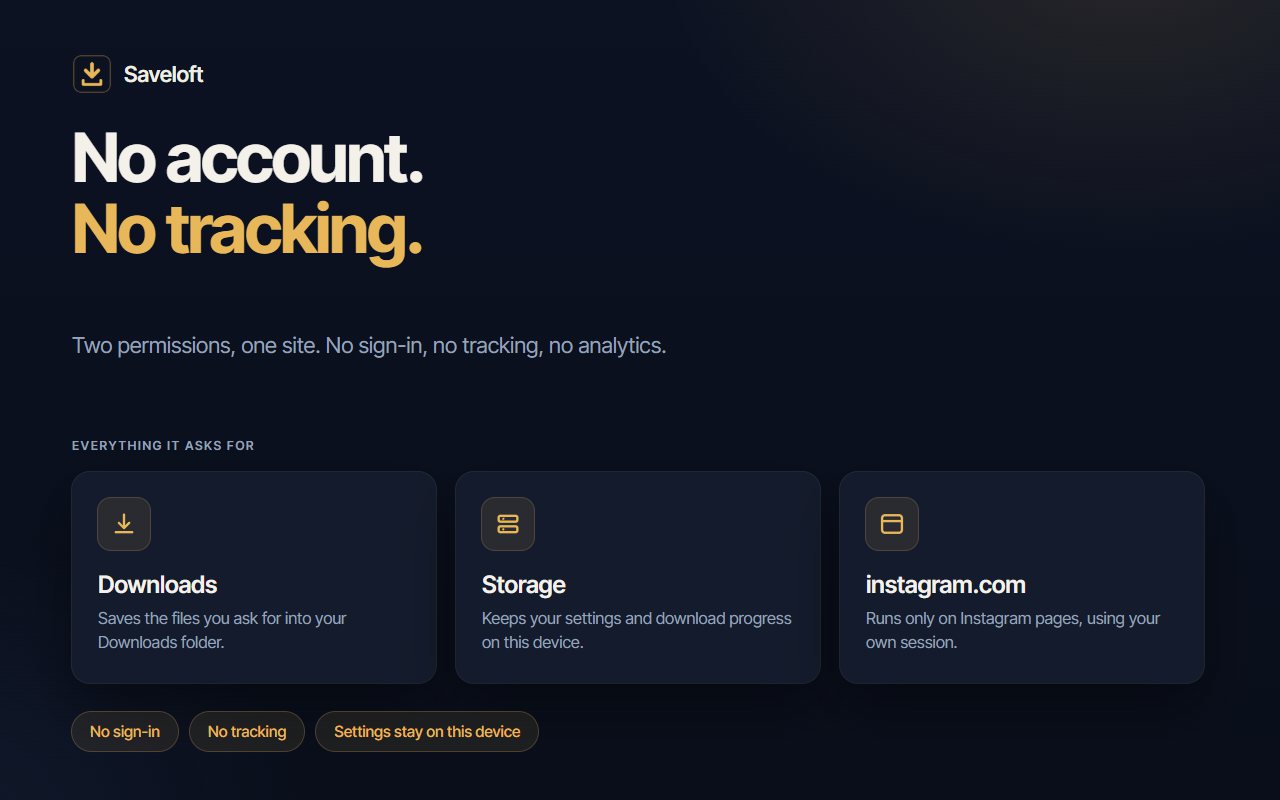
Every extension below saves Instagram media. They differ in how much of your browser they ask to reach. Saveloft asks for two permissions and runs on Instagram pages only.
Counted from each extension’s installed files on 22 November 2026, versions as shown. “All websites” means the extension may read and change the pages you visit on every site. Extensions update, so check a store listing for the current figures.
One button for posts, reels, stories, highlights and photos, and one run for a whole profile.
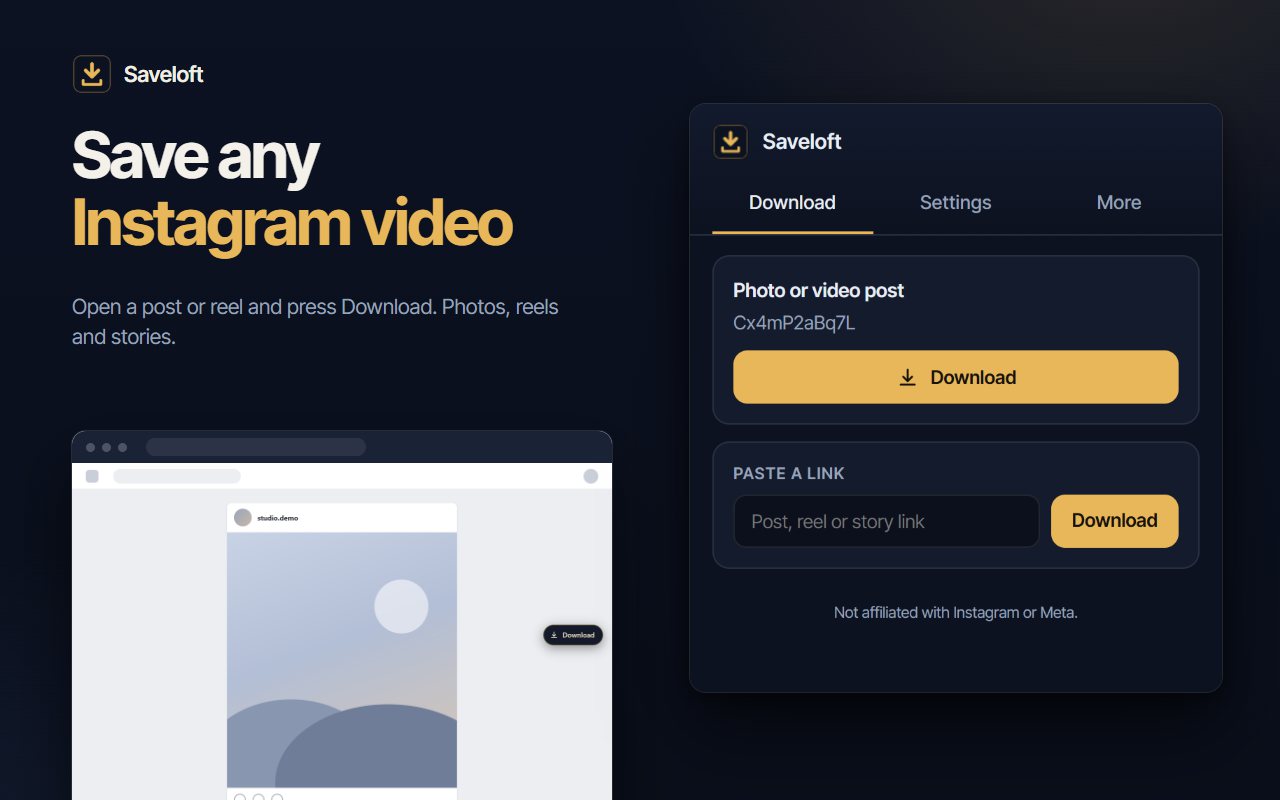
Open a reel or a post and press the button on the page. Saveloft picks the largest version of every file, so an HD upload stays HD.
Choose “This story” for the one you are watching, or “All stories of” an account to save its current stories. A pasted story link works too.
Open a highlight and press the button, or tick Highlights on a profile to save the ones shown there.
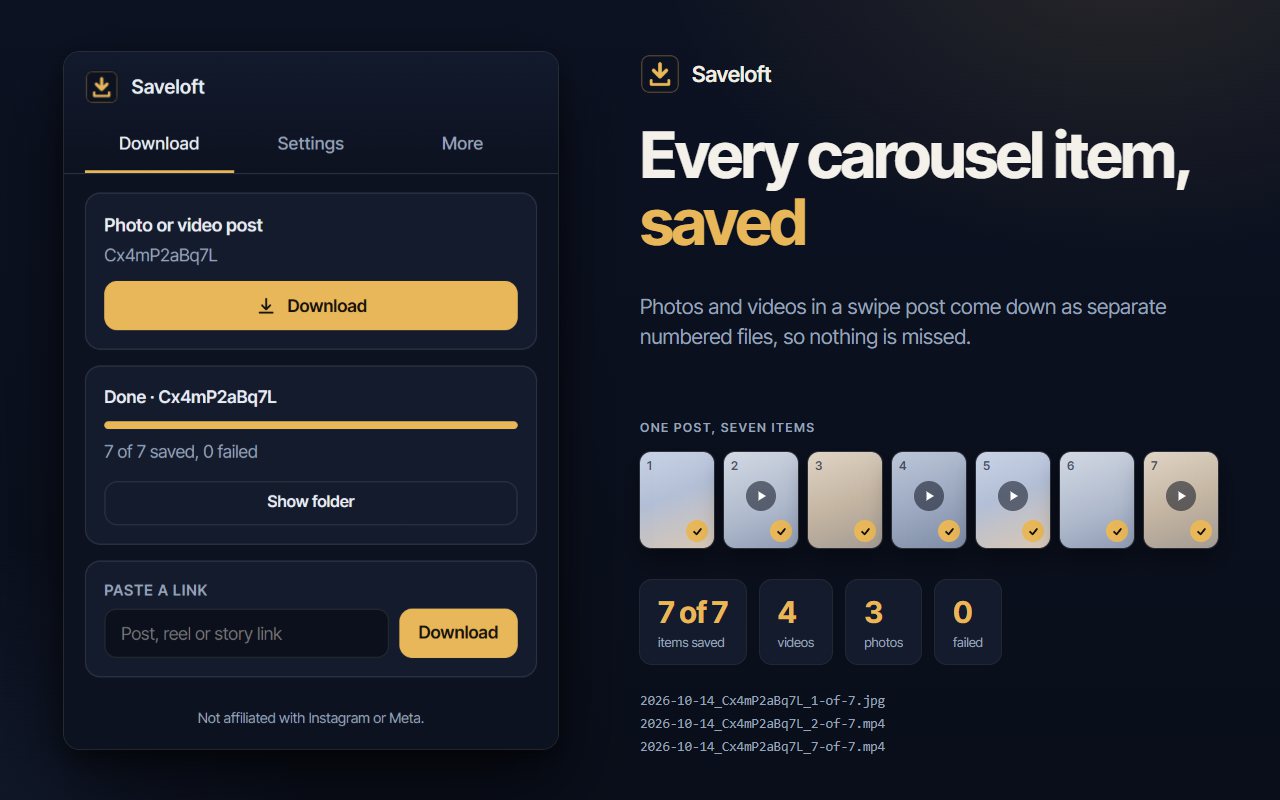
Every photo and video is saved in order and numbered, like 3-of-7. Nothing is left behind, nothing is overwritten.
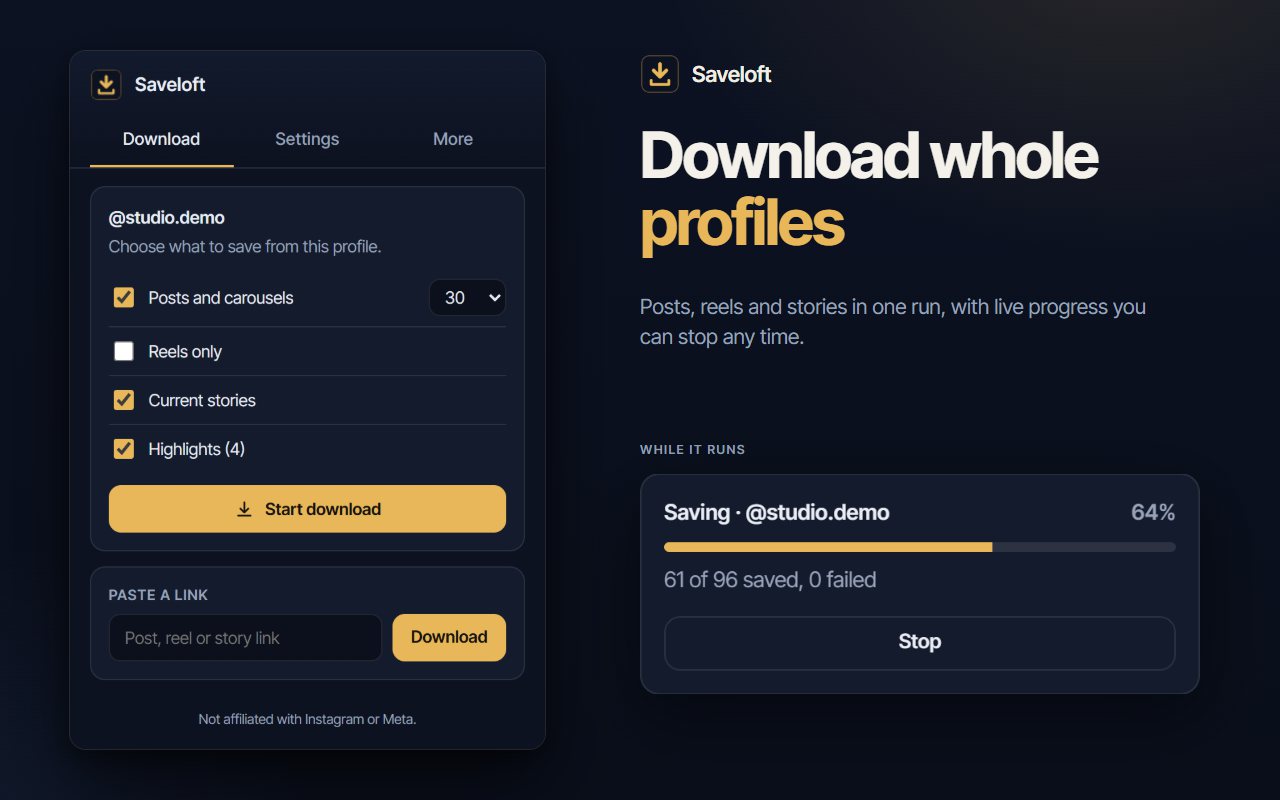
Choose how many posts to take, and whether to keep only reels. Add current stories and highlights to the same run. Saveloft reads the profile page by page, with a pause you set yourself.
Photos are saved as the largest image available, on their own or inside a carousel.
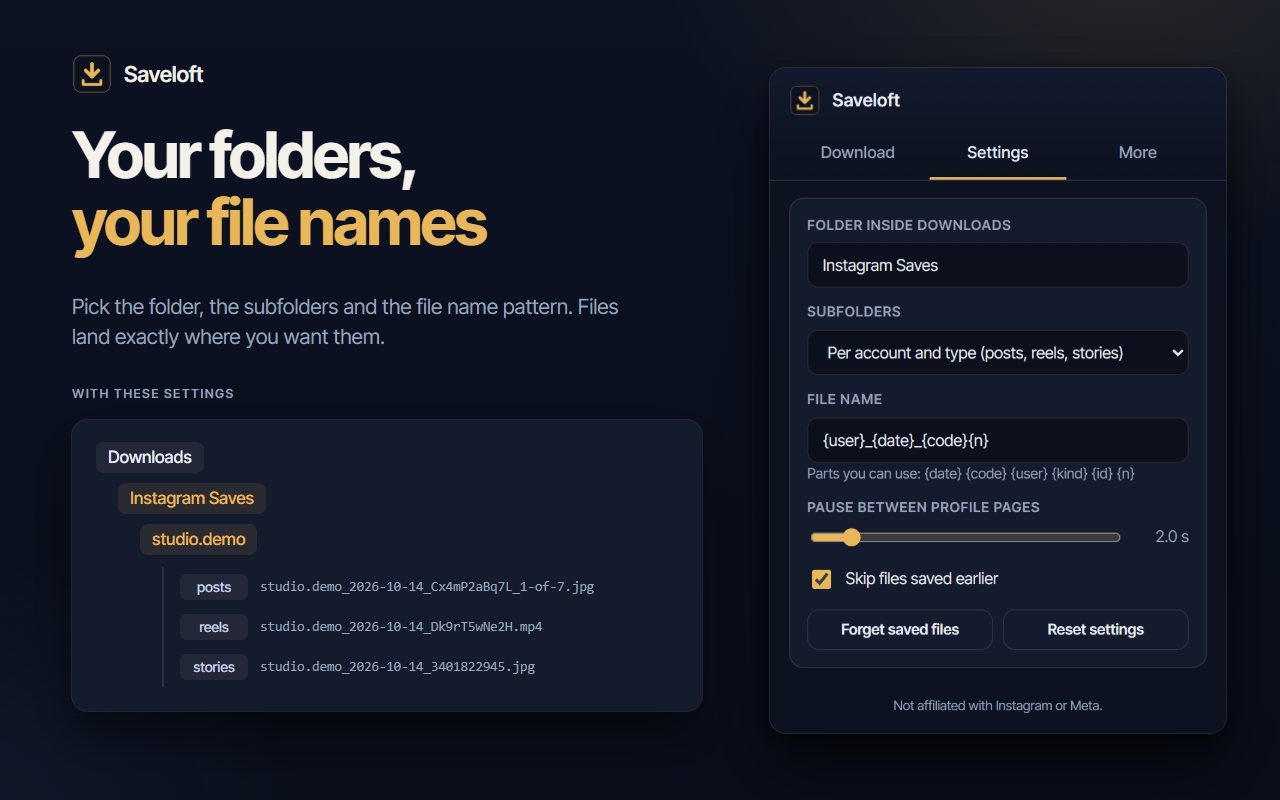
Name the folder, sort by account or by account and type, and write a file-name template from the date, post code, account, type, ID and carousel position.
Files saved earlier are skipped on the next run, so you can repeat a profile without duplicates. When something fails you get a plain message: logged out, requests limited, item gone, or a page that needs a reload. Stop whenever you like.
The same flow for a single reel and for a whole profile.
Install the extension, then log in to Instagram in Chrome as usual. There is no Saveloft account to create.
Open a post, reel, story, highlight or profile. A download button appears at the right edge of the page. Or click the toolbar icon and paste a link.
Saveloft picks the largest version of every file. On a profile, choose how many posts to take and whether to add stories and highlights.
Progress is live and Stop is always there. Files land in a folder inside Downloads, one subfolder per account by default.
A post, a carousel and a whole profile, from start to finish.
The popup, a profile run, your folders, a carousel and the two permissions.
How Saveloft saves reels, stories, highlights, photos and whole profiles, and what it asks of your browser.
Add to ChromeAdd Saveloft to Chrome and log in to Instagram as usual. Open the video, reel or post you want: a download button appears at the right edge of the page, and in the home feed each post also gets its own small button. Press it and the file goes straight into your Downloads folder. You can also click the Saveloft icon in the toolbar, paste a link into the popup and press Download.
Saveloft picks the largest version of every file the site offers, so an HD upload stays HD and a photo is saved as the largest image available, on its own or inside a carousel. It cannot make a file better than the version Instagram holds.
Open a story and choose “This story” to save the one you are watching, or “All stories of” that account to save its current stories. The second option needs the account to appear in your story bar on the site; if it does not, open the story itself and save that one instead. A story link pasted into the popup works too. Stories are the current ones, the ones visible right now.
Yes. Open a highlight and press the button, or open a profile and tick Highlights to save the ones shown there. Highlights can be added to a profile run together with posts and current stories.
Open the profile page and choose how many posts to take (12, 30, 60, 120, 300 or All, up to 1,000 in one run) and whether to keep only reels. Current stories and highlights can be added to the same run. Saveloft reads the profile page by page, with a short pause between pages that you set from 1 to 10 seconds. Keep the tab open while it runs.
Yes. Every photo and every video in the carousel is saved in order and numbered, for example 3-of-7, so nothing is left behind and nothing is overwritten.
No. Saveloft never asks for your Instagram password and has no sign-up or account of its own. It works inside the Instagram tab you are already logged in to, with your own session, and reaches only what your own account can already see.
Only two browser permissions: downloads and storage. It runs on Instagram pages and does not ask to read your data on every website you visit. What you view and what you save is not sent to us, and there is no analytics and no ads. Your settings and the list of files already saved stay in your browser.
Files are saved in a folder inside Downloads, with one subfolder per account by default. In Settings you can name the folder, sort files per account, per account and type, or all in one folder, and write your own file-name template using the date, the post code, the account name, the type, the ID and the position in a carousel.
Read the message: Saveloft tells you whether you are logged out, the site is limiting requests, the item is gone, or the page needs a reload. Reload the tab if it asks you to and press the button again; files already saved are skipped. If the site limits requests, wait a few minutes and try again, and set a longer pause between profile pages.
No. Saveloft is an independent extension. It is not affiliated with, endorsed by, or connected to Meta Platforms, Inc. or Instagram. Save only what you have the right to keep, and respect the people who made it.
Add Saveloft to Chrome, open Instagram and press the button. Two permissions, no account.
Add Saveloft to ChromeSaveloft is an Instagram video downloader extension for Chrome. It puts a download button right on the page, so you can keep the videos and photos you like in the highest quality the site offers, one click at a time or for a whole profile. It works inside the tab you are already logged in to, with your own session, and the files go straight into your Downloads folder.
Open a reel or a post and press the button on the page. Saveloft picks the largest version of every file, so an HD upload stays HD. Saveloft reaches only what your own account can already see, so an item that is not visible to you cannot be saved.
As a story saver, Saveloft offers two choices once a story is open: “This story” saves the one you are watching, and “All stories of” that account saves its current stories when the account shows in your story bar on the site. Stories are the current ones, the ones visible right now. A story link pasted into the popup works too.
Open a highlight and press the button, or open a profile and tick Highlights to save the ones shown there. They can join the same run as posts and current stories.
A carousel is saved whole. Every photo and every video comes down in order and numbered, for example 3-of-7, so nothing is left behind and nothing is overwritten. Photos are saved as the largest image available, on their own or inside a carousel.
On a profile page, choose how many posts to take (12, 30, 60, 120, 300 or All, up to 1,000 in one run) and whether to keep only reels. Saveloft reads the profile page by page with a short pause that you set from 1 to 10 seconds. Files saved earlier are skipped on the next run, so you can repeat a profile without duplicates, and “Forget saved files” in Settings starts fresh.
Saveloft asks for two browser permissions, downloads and storage, and runs on one site instead of asking to read your data on every website you visit. It has no account, no password prompt, no analytics and no ads, and what you view and what you save is not sent to us. Your settings and the list of files already saved stay in your browser and disappear when you remove the extension. The only other request is a plain request for the list of the developer’s other extensions. If you want the comments of a post instead of its files, see Pickmint; for Telegram media, see TeleCache.
If the site starts limiting requests, Saveloft stops and tells you. Wait a few minutes and try again; a longer pause between profile pages helps. No tool can control how a site reacts, so use it with care. Save only what you have the right to keep, and respect the people who made it.
Saveloft is an independent extension. It is not affiliated with, endorsed by, sponsored by, or in any way officially connected to Meta Platforms, Inc. or any of its subsidiaries or affiliates. “Instagram” and related names, marks and logos are trademarks of their respective owners and appear here only to describe what this extension works with.
 Instagram Unfollow AI - Manage Unfollowers Effortlessly
Instagram Unfollow AI detects those who don't follow you back and helps you unfollow them to…
 X Unfollow AI – Manage Your Twitter Following List
Manage your X (Twitter) following, detect users who don't follow you back, and unfollow safely…
 TikTok Unfollow AI - Mass & Auto Unfollow All, Everyone & Non-Followers
See who doesn't follow you back on TikTok, then bulk unfollow all, everyone or only…
 WASendly – WhatsApp Bulk Message Sender
Send bulk and automated WhatsApp messages safely and easily with WASendly.
 Contactdock – WhatsApp Contacts Extractor
Easily export WhatsApp contacts and group members to Excel, CSV, or vCard.
 TeleSendly - Telegram Bulk Sender, Scraper & Member Adder
Send bulk Telegram messages, scrape group members to Excel and add members to groups. Safe…
 Followgap - Instagram Unfollowers Tracker & Unfollow Non-Followers
Find who doesn't follow you back on Instagram. Track unfollowers & mass unfollow non-followers…
 FollowStack – Instagram Toolkit for Desktop
Instagram toolkit for desktop. Track unfollowers, upload stories from PC, download media, and…
 Rosterbox - IG Follower & Following Export List to CSV, Excel
Export IG follower and following lists, likes and comments to CSV, Excel or JSON in one click…
 Roostbox - Twitter/X Exporter: Tweets, Followers, Bookmarks & Archive
Export tweets, replies, likes, bookmarks and followers from any Twitter/X account to Excel…
 Postwash - Delete Tweets, Likes & Reposts for X
Delete tweets, likes and reposts on X in bulk. Preview first, back up to CSV, and every…
 ExportPal - Save & Export ChatGPT, Claude, Gemini to PDF & Word
Save & export ChatGPT, Claude, Gemini, Grok, DeepSeek & Perplexity to PDF, Word, Markdown…
 TokExport - TikTok Follower List, Following & Comment Export Tool
Export TikTok follower and following lists, video comments and post stats to CSV or Excel…
 ChatGPT Speed Booster
 is a free Chrome extension that fixes slow ChatGPT performance in long…
 Instagram Follower Export Tool
Export Instagram followers, following, likes, and comments to CSV or Excel in one click
 TokSweep - TikTok Repost Remover & Bulk Cleaner
Remove TikTok reposts in bulk. See the full list first, pick what goes, and set your own pace…
 PromptJolt – AI Prompt Enhancer for ChatGPT, Claude & Gemini
Rewrite any AI prompt into a clear, structured version in one click. Press Ctrl+M on ChatGPT…
 IGFollow AI - Auto Follow
IGFollow AI is an AI-powered tool to grow your Instagram. Boost engagement and expand your…
 Followprune - Fake Follower Checker for Instagram
Scan your followers or the accounts you follow, spot fake and empty ones, and remove them in…
 Backgap - Threads Followers Tracker & Mass Unfollow
See who doesn't follow you back on Threads, protect the accounts you want to keep, and tidy…
 Backly — Unfollower Tracker for Instagram
See exactly who doesn’t follow you back on Instagram, protect the accounts you care about, and…
 TeleCache - Telegram Video & Media Downloader
Download Telegram videos, photos, audio and files in bulk. Filter by type, date, size or…
 FeedRank – Instagram & TikTok Feed Sorter
Sort Instagram & TikTok feeds by likes, views, comments or date. See post stats at a glance…
 Instagram Auto Follow
AI-powered Instagram auto follow tool to boost engagement, grow followers, and expand your…
 Claude Speed Booster
Fix slow Claude.ai in long conversations. Speed Booster hides older messages to stop lag…
 ChatPilot – ChatGPT Bulk Delete, Archive & Timestamps
Bulk delete & archive ChatGPT chats, add message timestamps and navigate conversations fast…
 Extract AI – Email Extractor
Email Extractor helps you find visible email addresses on websites and works locally with no…
 Prompt Trove — Visual AI Image Prompts Gallery
A visual gallery of AI image prompts. Use them instantly in ChatGPT, Gemini, Sora, and Nano…
 Crawlhive — SEO Audit, Site Crawler & Technical SEO
Audit any page, then crawl the whole site: indexability, duplicate titles, orphan pages, click…
 Privacy Guard for WhatsApp Web
Secure your WhatsApp Web with smart lock, panic button, and blur mode. Your privacy, your…
 Clickaroo - Mouse Effect Designer
Transform your cursor with stunning click effects & animations. Perfect for streamers…
 InkShot — Webpage Screenshot & Draw Tool
InkShot is a free screenshot Chrome extension that lets you capture full page screenshots…
 Detechtor AI - Website Technology Checker & Tech Stack Detector
Detechtor AI checks what any website is built with — CMS & WordPress theme detector…
 Numsift — Bulk WhatsApp Number Checker & Validator | Export to Excel
Bulk check which numbers are on WhatsApp. Validate lists, filter by country, spot business…
 Clearbox — Bulk Chat & Message Deleter for Instagram
Delete all your chats and messages on Instagram in bulk. One click, and the chats you protect…
 Araç Data Merkezi — Used Car Valuation & Damage Check for Sahibinden
See what a car on Sahibinden is really worth: market value for the exact trim, how damage and…
 Chatalbum - WhatsApp Chat Export to PDF & Excel
Save any WhatsApp Web chat as a readable file with its photos and voice notes. Everything…
 TokDraw - TikTok Giveaway Picker & Comment Picker
Pick fair, verifiable winners from TikTok video comments on a big, recordable stage: set your…
 Groupdex - Contacts & Chat Exporter for WhatsApp
Export contacts, group members and chats from WhatsApp Web to Excel or CSV. Pull phone numbers…
 Pickmint - Instagram Giveaway & Comment Picker
Instagram giveaway picker: collect a post's comments, set simple rules, pick fair winners and…
 SignedRise - Professional Email Signature
Create custom and professional email signatures effortlessly with SignedRise. Perfect for…